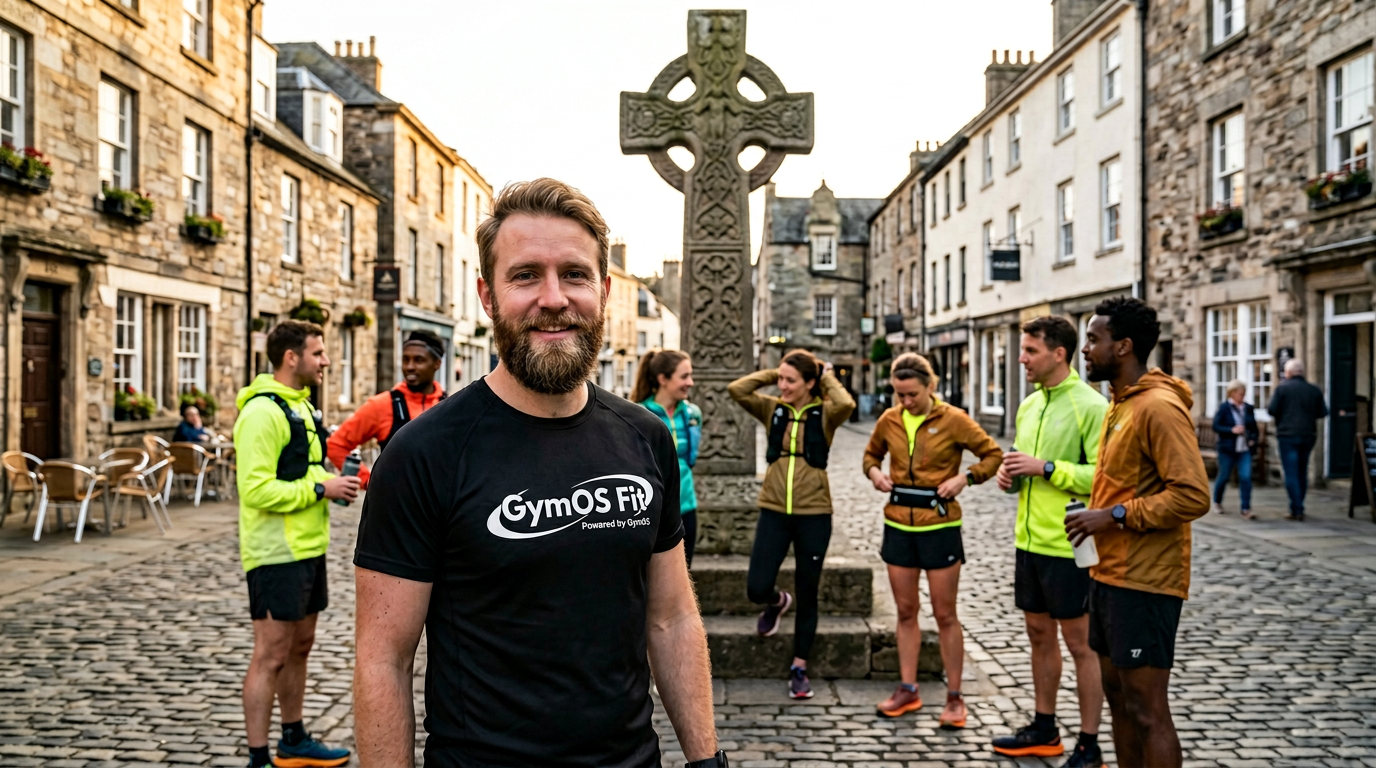
Every gym seems to have a weekend “Run Club” these days.
And fair enough… they’re a brilliant way to get out into the community, meet new people, and attract fresh leads.
But here’s the thing…
Most gyms are barely scratching the surface of what a Run Club can actually do for their business.
With just a little bit of smart setup upfront, that same weekly run can become a powerful lead engine – not just a nice community gesture.
In this webinar, I’ll show you how to run a weekly Run Club through GymOS that doesn’t just get people moving… it gets them joining.
It’s 2026…
Can you even call yourself a small group personal training gym if you’re not putting on a “Run Club” at the weekends?
It’s something many independent gyms now operate, but opportunities are often missed because a decent idea is poorly implemented.
I’m Chris Windram, CEO of Quoox. In this webinar, I’m going to take you through how you can use GymOS to help turn your run club into a massive win – all from just putting in a little effort up front.
The premise is simple: You operate a free Run Club in your area open to both members of your gym and the local community.
You get your name out into the community and attract new leads. They meet people from your gym. They see what a great community you have and, with any luck, they want in.
The running part is easy. As professional fitness facility operators, you can do that in your sleep. I’m going to show you a process that helps you maximise your conversions, and that you only need to set up once for your weekly run sessions.
This will likely take you an hour or two to set up. But let’s keep perspective here. You are launching a new product. An hour or two is nothing if it increases the membership conversions you get from the sessions.
I’m going to start with some terminology, as this is often where people get hung up and end up down rabbit holes.
In the context of GymOS:
A lead is an early-stage prospect who has not yet engaged with any of your services. Trials or taster sessions are both services. A lead has merely expressed an interest in what you do. Typically, you would nurture them to start a trial.
A member is someone who has, or is, receiving services from you. A member has their own lifecycle. Most importantly, and a common misconception, a member does not necessarily have to have a membership.
In GymOS, Run Club is effectively a taster session, for which the attendees will either be existing members or new “pre-trial” members.
In our workflow, we’ll create a recurring Run Club session that attendees can book. We will create a campaign to promote it and get people signed up.
Those are the absolute essentials and about as far as most people take it. Often, it lacks flow and warmth. Some even fail to create a proper landing page.
In our example, we’re going to go further. I’m going to show you the simple additional steps that turn it from “humdrum club” into a proper revenue-generating machine.
Let’s start by setting up the recurring run-club session that our runners will book.
You want people to book, as you’re looking to record commitments and follow-up actions. It also gives you an indication if you’re going running with a few people, or if you’re leading a small marathon through your town!
As usual with configuring a session, we head into “Settings”, then “Sessions & Events”.
Click to add a new session of the regular “session” type.
We now fill in our details. So, we’re going to call it “Run Club”.
Fill in a meaningful, engaging description.
This is the step most GymOS users skip. This is shown to people in the app and member site. You are trying to sell your session! Leaving it blank or simply typing the session name again does nothing for you.
Similarly, upload an engaging photo for the session. It’s “run-club, fun-club”, right? Show people have a good time as they run with you, not dying on their arse begging for water!
Set up the duration and booking period. Set a highlight colour unique to run club to make it easy for people to find in the schedule amongst your other sessions. We’ll look at that more later.
It’s free, so all the costs are zero. Not blank, which would make that payment method unavailable. In this case, it is zero for “no money, or free”!
Make sure you have ticked “allow those without memberships”, so everyone can book. We don’t need to use credits or memberships in this scenario.
Finally, a cursory nod to the Robo-nudge reminder scheme. We’ll leave that as is for the moment, but we will be coming back to that.
Hit Save.
Now that we’ve created the session type, we want to add it to our schedule.
Give your schedule a name and select a venue. Note, I am not adding a new venue (as that will increase your subscription costs), but am instead using a venue area I created.
It is good to assign a head coach to the sessions. When people are new to Run Club, they will want to be able to identify the person running the session for peace of mind and comfort.
Most of our settings have pulled through from what we did a moment ago, so we just need to hit save. This has added the session to our calendar.
Now we’re going to move on to our campaign. Head over to “Connect and Promote” and “Campaigns”.
From the “Add a new campaign” selector, select “Member record creation.” This campaign type enables the lead to self-create a member record in GymOS without needing to assign them a membership. These are effectively created as a Pay-as-you-Go member, to which we will assign additional tags and attributes in a minute.
We’re taken straight to the campaign setup page, where we give our campaign a sensible name and set its settings. We don’t want to send the default welcome email; we’ll handle it separately.
We do want them to set their own password, as this reduces steps and barriers later. We don’t need them to add a payment method, because Run Club is free and asking for card details would send them running for the hills… Good for cardio, but not the running we’re after!
Now, let’s go to the landing pages tab. We’re going to create a new landing page. Don’t skip this step. You will get much better sign-up rates if you create an attractive landing page and properly link your sign-up flow to it. We’ll cover all of those steps.
You can either create your landing page from scratch, but for this run-through, I’m going to select the Run Club pre-created layout as my starting point.
So, here is my page structure, which already looks pretty good. I just need to customise a few bits and drop in my own photos and information.
Now, I’m going to save that, pop back to the landing pages tab and grab the sign-up form URL. Clicking on the link puts it in my clipboard.
I now re-edit the page, scroll down to my campaign form, and tell the landing page which form to use. I can also tweak my form colours if needed.
Note that we are providing existing members a direct route to book their session. They are already registered in GymOS, so they can skip the entire sign-up process.
I’m happy with my page, so I save and close it.
Still on the landing pages tab, I’m now going to drop in my Facebook Pixel ID and my Google Analytics tracking. This is good for tracking the interest you are drumming up and for remarketing purposes. Remember to hit Save.
Note the completion page field. We’re going to deal with that next. Rather than GymOS just displaying an uninspiring “thanks” message, we’re going to use the completion page to add workflow to our registration. This will help the prospect feel confident and guide them through the next steps.
We’re going to create a new custom Portal page in FitnessHub. A portal page appears in the FitnessHub member site structure, whereas a Canvas page appears full-screen. We want the portal page option for reasons that will become clear.
Let’s look at one I have already created.
You will see that this confirms their registration and guides them through their next steps. We want them to complete a PAR-Q form (to ensure compliance with regulations and protect ourselves from legal headaches) and book their session.
A few points to note here. I am not forcing them to download the GymOS app or take any unnecessary steps at this stage. We are looking to keep barriers to a minimum. Everyone has access to the web portal, so we’re using that as our sign-up vehicle. If you’ve got the GymOS vanity URL, the FitnessHub site will be displayed on your domain, giving them brand confidence and recognition.
I have customised the session booking link to immediately filter the listing to show only Run Club. If you’re not sure how to do that, check the knowledge base or raise a support ticket. It’s very simple.
Having built my completion page, I’m going to click to add the URL to my clipboard, then head back to the campaign and paste it into the completion page section. Again, remember to press save.
I can add custom questions to the registration page if I want, but I won’t because I don’t want to add barriers. We want to capture leads. We can get their life story later, as we jog with them around town.
At this point, we’ve got our campaign set up, our schedule, and, technically, the base elements are in place. However, we’re going to add a few more touches that will take the process to the next level.
Firstly, we’re going to head into RoboNudge, and set up some session reminders specifically for Run Club. Rather than generic “upcoming session” messaging, I’m going to keep it focused on Run Club and knock down any pre-run nerves they might have. I will also give them useful information that they might not know.
Here is a simple 3-day-before and 1-day-before sequence I have already set up.
Ordinarily, I would have set up the reminders before creating the session to reduce the number of steps, but I have done it in this order to make the flow more logical. I recommend setting up your reminders before adding your session.
I’ll go back and assign the RoboNudge to the session I set up a few minutes ago.
Next, I’m going to set up some actions that occur when they first register. We will have already taken them to the completion page. That guides them, but some might not have followed through, so we need to put in place follow-up steps.
To do that, we’ll create a trigger. The trigger type we want is a “Member trigger”, found under “creation and conversion”, and it’s called “Member sign-up via account creation campaign”.
For expedience, we’ll look at one I have already configured. I assign the trigger to the campaign I created so it runs only for people who complete the run club campaign.
Looking at the steps, it does several things.
Firstly, it assigns them the PAR-Q form that we want them to complete.
Next, it sends them an SMS text message. Ok, yes, sharp intake of breath, it’ll cost you five or ten pence, but this is part of your cost of sale. A reassuring text message the moment they sign up gives them confidence and guides them to check their inbox (and junk folder) for your follow-up messages.
Trust me, when you get someone on the hook for a recurring 300-pound-per-month membership, that 10 pence will seem irrelevant.
Thirdly, it sends them a well-designed email that reaffirms the steps outlined on the completion page. This guides them through the steps if they bail or close the browser.
Fourthly, we’re going to add the “run club” tag to their member record. This will help us group our run club members together.
We’re going to set their journey point to that of “pre-trialist”.
And, whilst we’re here, we’re going to assign them a custom status of “Exploring/Pre-trialist”. This helps me identify and filter them readily amongst my paying members in the system. Depending on your set-up, you might skip setting the status.
That trigger fires immediately after they are signed up.
Now, I’m going to add another trigger that fires after they book their first run club session. The trigger I want here is the “Booked a new session type” trigger, found under “Members” and “Sessions”.
This trigger fires when they book their session. I’m going to add a 1hr delay, and then send them an email with information they need to know as a first-time attendee, such as what to wear, what to bring, and where to park.
We’re still going… for a few minutes extra work, these steps build a powerful conversion machine, so let’s stick with it.
Now, one final trigger. This one is “Attended a new session type”. This fires after their first run club, once we have marked them as having shown up and taken part. We’ll come on to that momentarily.
Ok, we know the head coach plans to call them first thing Monday, but we also know there’s only about a 30% chance that will happen, since he’ll get distracted by a dozen other tasks and dramas.
I set it up my trigger to exclude current members, as I only want to target potential new clients.
I add a delay of about two and three-quarter hours for when they’re back home. I then send a personalised-looking text message. This draws their attention to the fact that I’m about to send a follow-up with more information.
I now issue them a DropSlot consultation invitation, suppressing the default notification, as I am going to reference this in my next email.
Then, the email where I start to introduce them to a little bit more about our facility and invite them to either book a call (via the DropSlot link) or, if they’re already interested, sign up for a trial.
We also add a nurture sequence to their record, which will now start to drip-feed them information about our gym and keep us in their mind.
Whilst we’re here, we’re going to do something “future us” will thank us for. We’re going to add a couple of dynamic member groups. The first is for all run club registrants. The second is for run club registrants who are not yet members but whom we haven’t seen for a month.
We can use these in bulk mailouts through Scheduled Broadcasts or other methods in GymOS.
Okay… The end is in sight, and this is shaping up nicely!
Let’s discuss check-ins. For some reason, this is something some coaches make a bit of a meal of, but in GymOS it’s very simple.
You turn up to Run Club, you open your GymOS app, and you go to the attendee listing. You can also use roll call if you want to confirm that people have completed their Par Qs, etc., but attendee listing will generally suffice. Now, you simply click on everybody who is present, and that’s it. They’re checked-in.
The presentation to the crowd is simply the coach driver’s “just making sure we don’t leave anybody behind”. All perfectly acceptable, normal, and nothing more than 1 click per attendee. Or, if the numbers tally, one click to mark everyone as attended at once.
Of course, you also have the option to have people mark themselves as attended in the GymOS app, but let’s keep life simple for them.
We now have everything set up and are ready to get our landing page out into the wild. But, wait, because GymOS has yet another trick up its sleeve.
Rather than using the long campaign link, or faffing with Bitly to create a shortened version into which it injects adverts, use GymOS’ custom URLs. Paste in your campaign link, give it a catchier name, and save it. You then get a much nicer web address, or you can choose an ultra-short qxl.ink GymOS creates for you.
Moreover, as an additional Brucie-bonus, GymOS also generates a ready-to-use QR code for your campaign to include in your printed documentation. Click on the QR code image to download it to your computer.
So, that concludes the build. Let’s have a look at the result.
We scan our nice QR code, and we’re taken to our landing page.
We like what we see. If we’re an existing member, we jump straight to booking. If we’re not, we sign up within the page – no jumping anywhere else and no faffing.
I simply enter my name, email, and mobile.
Here’s my confirmation page, with a link through to the schedule and my call. GymOS has already logged me in, so no faffing about there.
Ping! I’ve just got a text message telling me to check my mail and, lo and behold, there are my emails.
I can now book my session and receive my follow-ups. The member record is created in GymOS and nicely tagged. I haven’t had to create a dummy membership to skew my stats, and I know exactly what stage everyone is at.
As a good gym owner, I will now follow up with multiple manual touchpoints, but I am also comfortable knowing that GymOS delivers regular automated touchpoints should I get waylaid.
Yes, you can get by with a session and a campaign form, but a couple of hours spent now raises your professionalism level and conversion rate several notches.
If you’re not already a GymOS client and would like to see more of how we help gym owners grow and run their businesses effectively, all in one, single, cohesive platform, please scan the code to book a call.